Plans
Note
You should setup payment gateway before configurate Plan
Add Plan
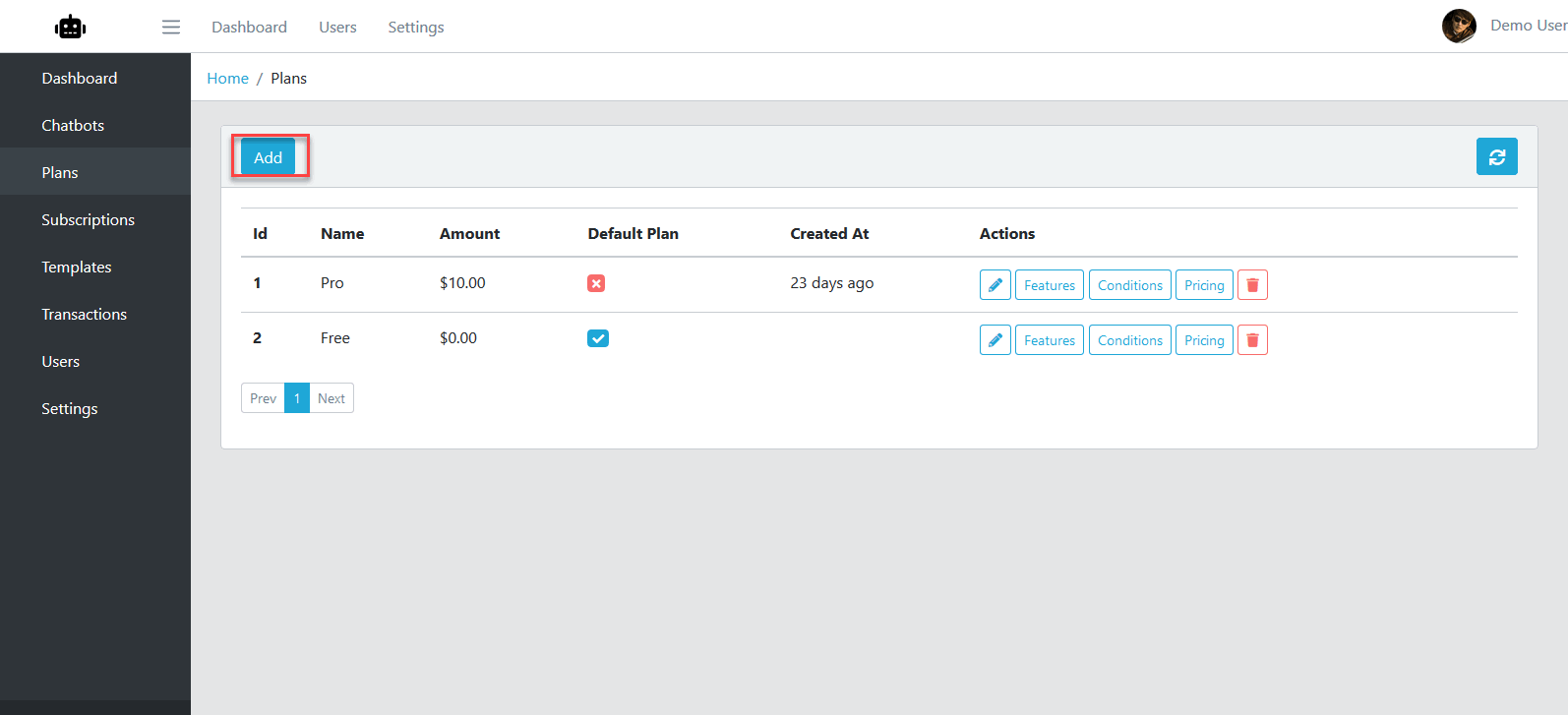
Logging your admin page, click Plans
Click Add button.
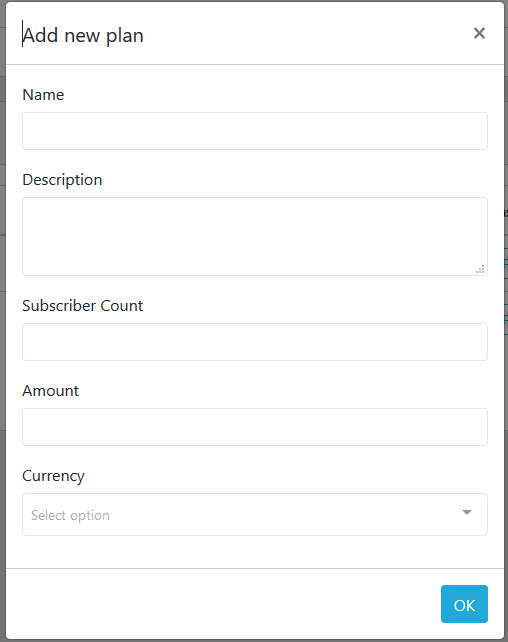
From Add Plan dialog, fill required information then click OK.
Edit Plan
Note
You can’t change Price of a plan.
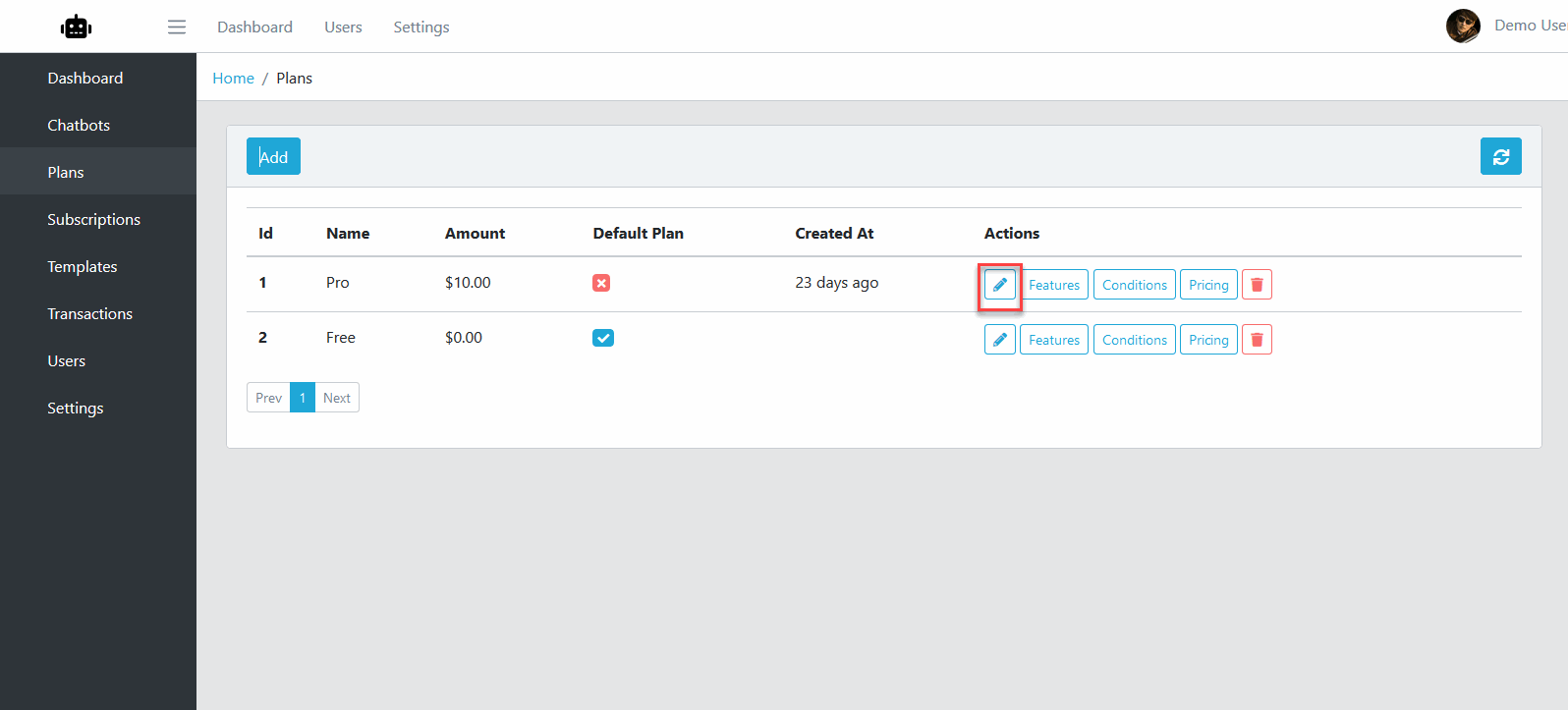
Logging your admin page, click Plans
Click the Edit button on the relavant Plan item.
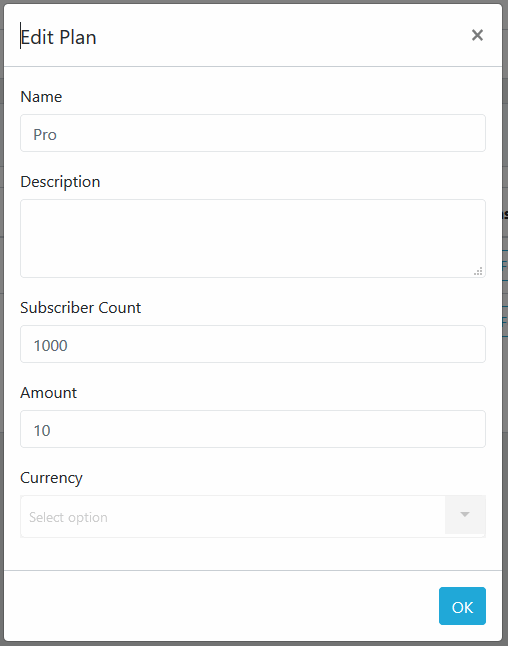
From Edit Plan dialog, fill required information then click OK.
Plan Pricing
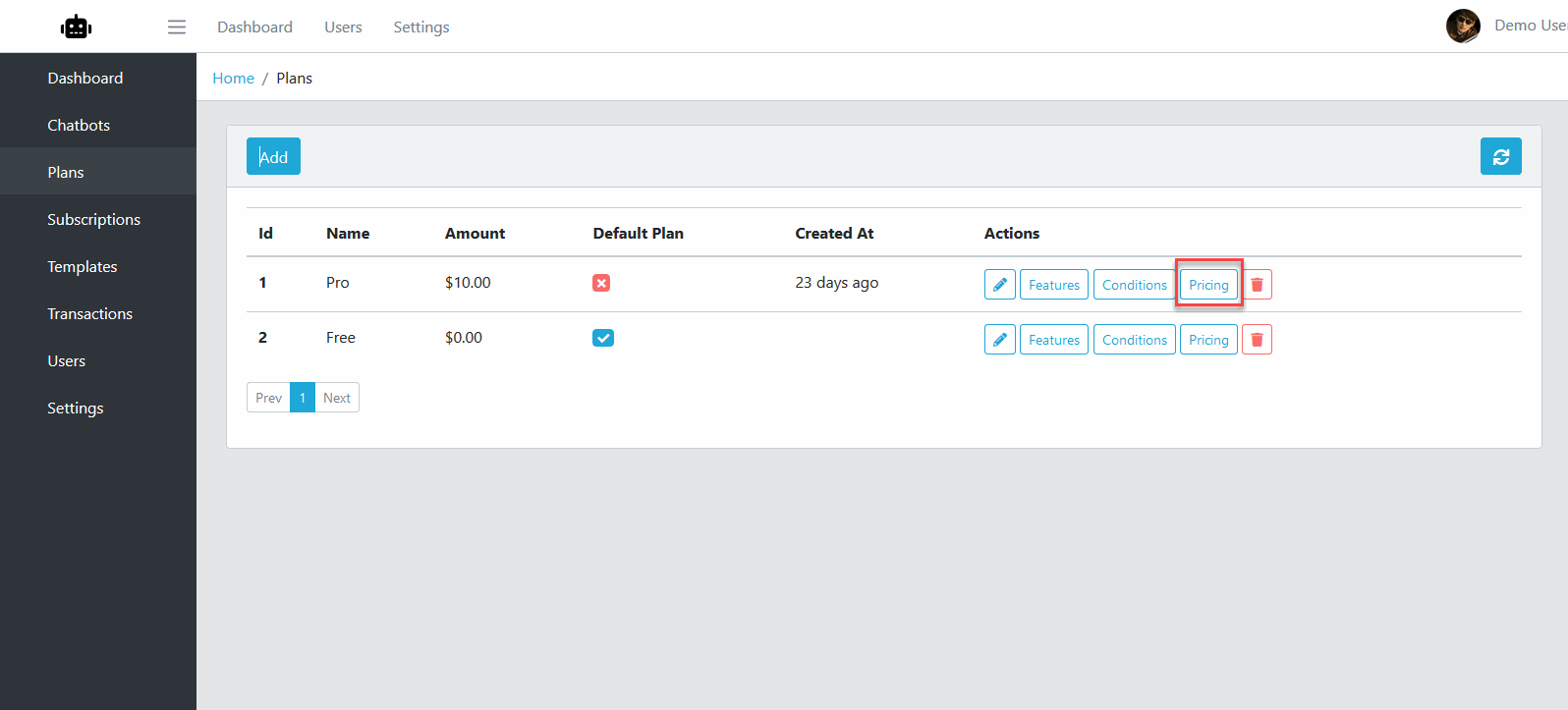
Logging your admin page, click Plans
Click the Pricing button on the relavant Plan item.
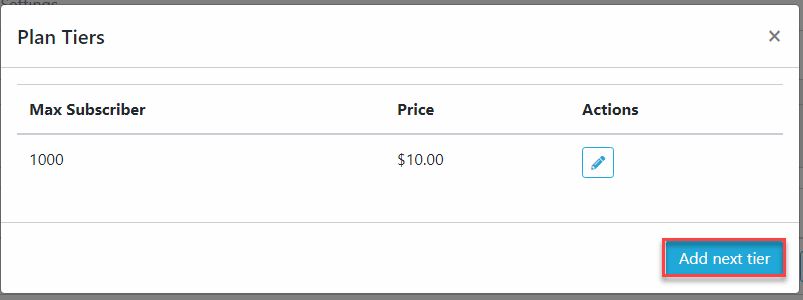
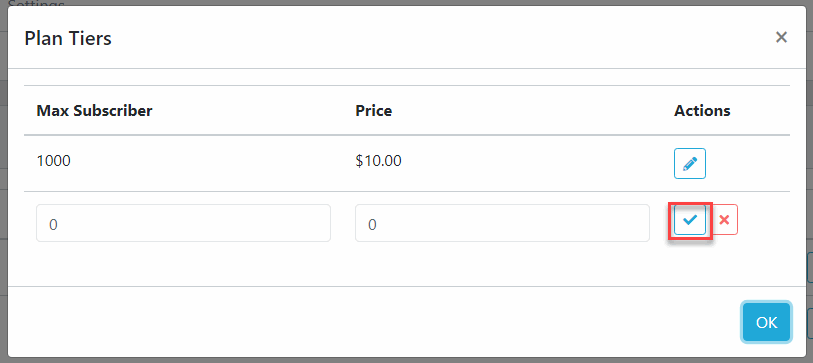
From Plan Pricing dialog, click Add Next Tier.
A new row item will added, enter Subscriber Count and Price, then click Check button to save.
Plan Feature
Logging your admin page, click Plans
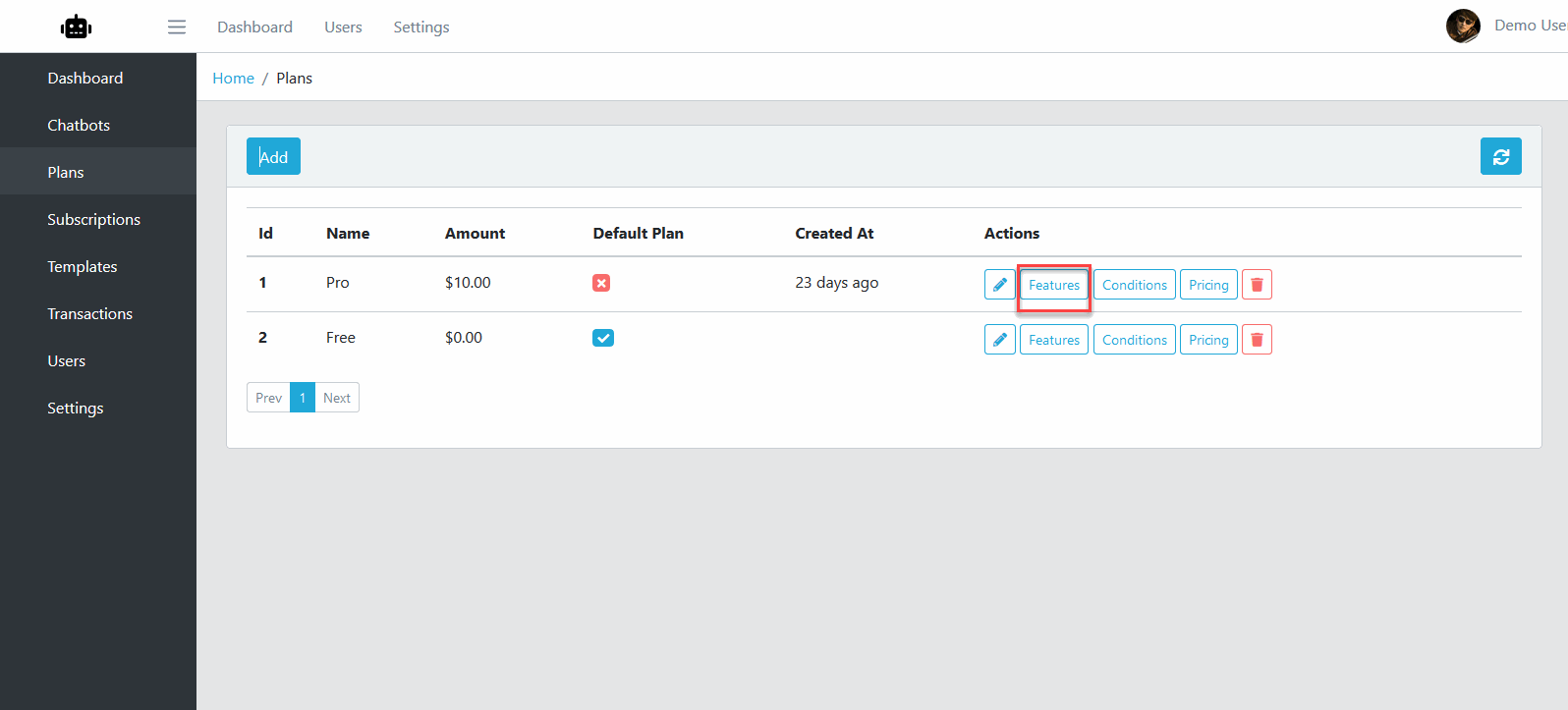
Click the Features button on the relavant Plan item.
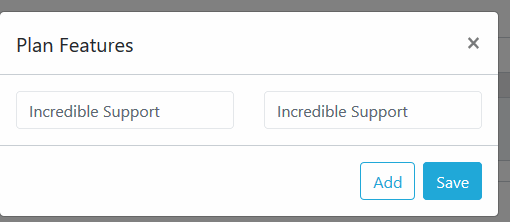
From Plan Features dialog, click Add button, enter Title and Tooltip then click Save.
To remove a Feature Item, hover this item then a Delete button will show. Click this button to remove. Then click Save.
Plan Condition
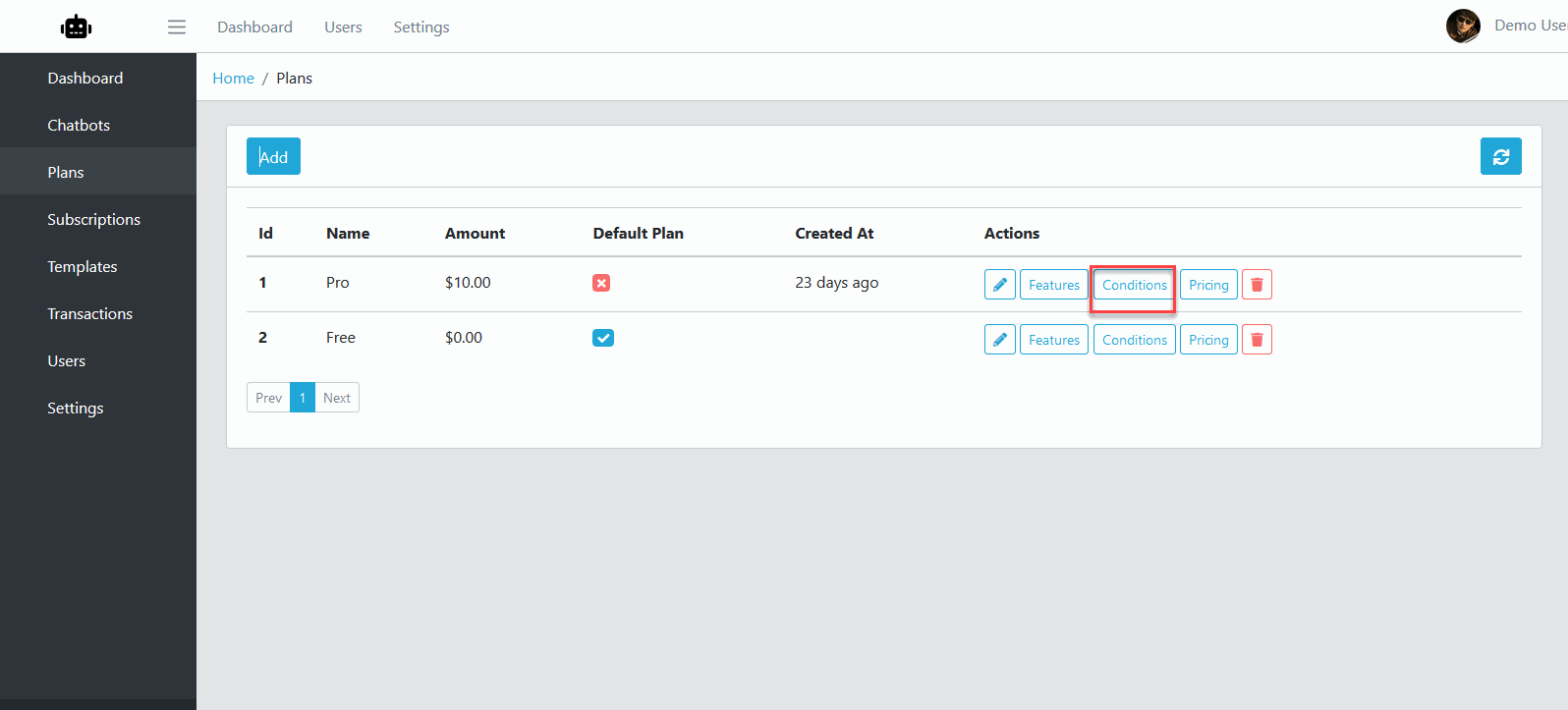
Logging your admin page, click Plans
Click the Conditions button on the relavant Plan item.
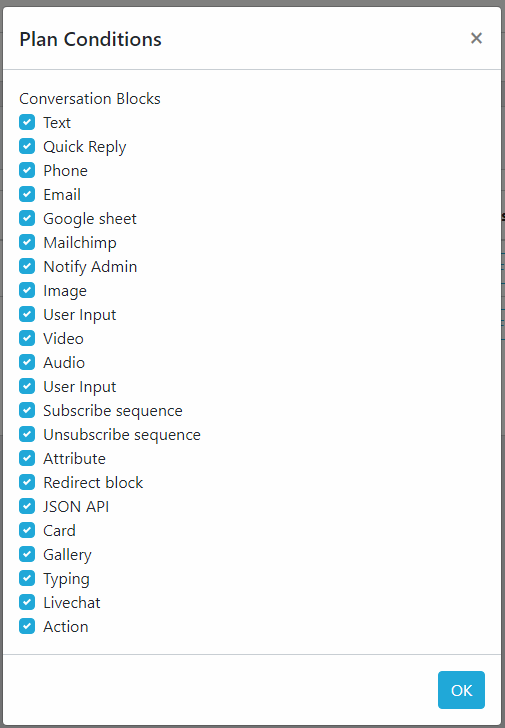
From Plan Conditions dialog, check or uncheck the Conversation Card you want to show on this plan.